iPhone secrets: 5 useful settings you didn’t know existed

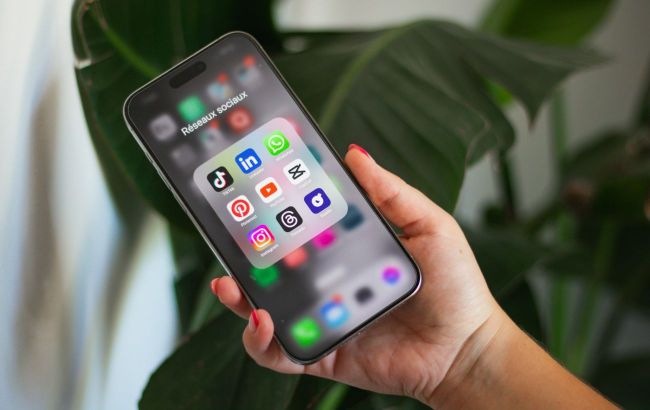 Hidden iPhone settings rarely mentioned (photo: Unsplash)
With each update, Apple quietly adds hundreds of useful features and settings to iOS that can significantly simplify daily iPhone use, yet often go unnoticed. These are small capabilities that become truly helpful when you know about them in advance.
9to5Mac highlights five iPhone features and settings every device owner should know.
Blur faces, license plates, and sensitive data in Photos
The Clean Up feature appeared in the Photos app with iOS 18 and was originally promoted as a tool for removing unwanted objects from images. However, it also allows you to hide confidential information.
With Clean Up, you can blur or pixelate faces, car license plates, bank card numbers, and other sensitive elements.
To do this:
-
Open the Photos app and select a photo;
-
Tap Edit;
-
Choose Clean Up;
-
Wait for the image to process;
-
Outline the face or number – the object will be instantly blurred;
-
Tap Done to save your changes;
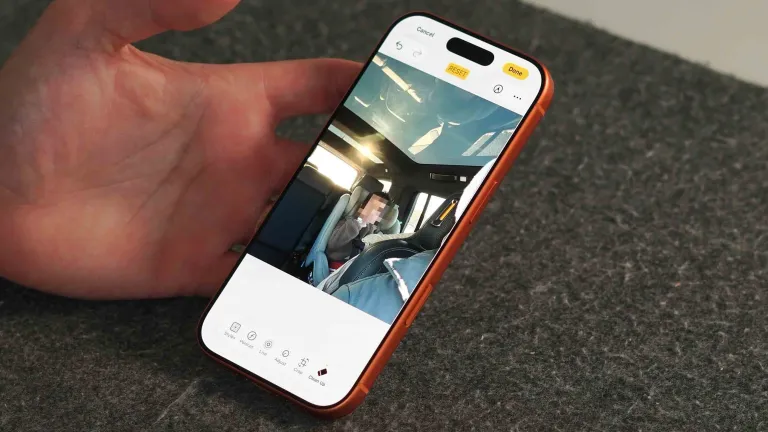
Blur faces and more (photo: 9to5Mac)
Change how incoming calls are displayed
Apple has finally added the option to choose how incoming calls appear. Previously, a call would take over the entire screen, making it impossible to continue using the device.
Now, users can select a compact banner that doesn’t interfere with ongoing tasks.
To change this setting:
-
Open Settings;
-
Go to Apps, then Phone;
-
Tap Incoming Calls;
-
Choose Banner or Full Screen;
Prevent adjusting ringer volume with buttons
By default, the physical volume buttons control both media sound and ringer volume. For users who frequently watch videos or listen to podcasts, this can be inconvenient.
To disable adjusting the ringer volume with buttons:
-
Open Settings;
-
Go to Sounds & Haptics;
-
Turn off Change with Buttons;
After this, the volume buttons will only control media playback volume.
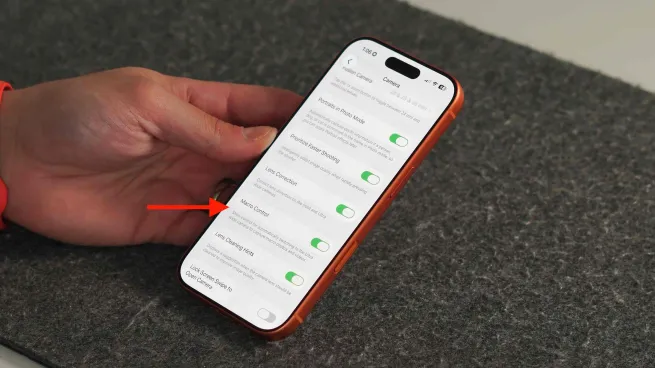
Switch macro mode to manual in Settings (photo: 9to5Mac)
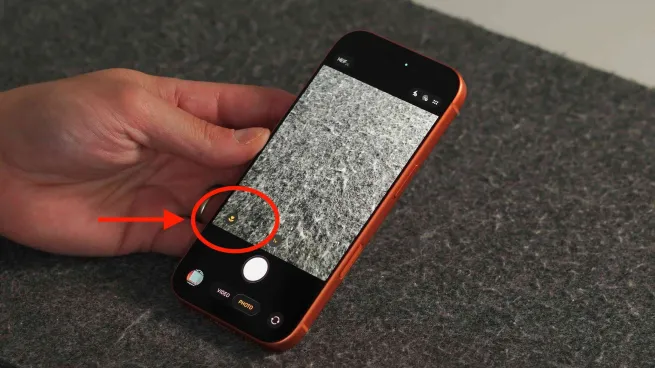
Flower icon for manual control (photo: 9to5Mac)
Share podcast from a specific moment
The Podcasts app now allows sharing not the entire episode, but a specific segment. This is especially useful since modern podcasts can last several hours.
To share a specific moment:
-
Open the Podcasts app;
-
Play the episode;
-
Tap the captions button in the bottom-left corner;
-
Press and hold the desired line of the transcript;
-
Select Share.
The recipient will jump directly to the chosen moment in the episode.
What to know
Apple regularly adds genuinely useful features to iOS, but many remain hidden in settings or appear without detailed explanations. As a result, a significant portion of iPhone capabilities often goes unused.
Even the functions listed here are just a small fraction of what an Apple smartphone can do, and the company continues to expand this list with each system update.