How to get rid of built-in Android apps and speed up your phone

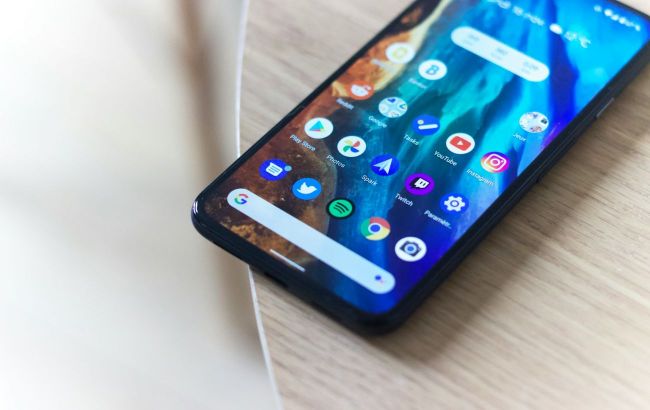 Free up space on Android by removing unnecessary apps (photo: Unsplash)
Many Android users find that their smartphones become slow and overloaded over time. In most cases, the problem is caused by built-in apps that take up storage and system resources but are rarely used.
RBC-Ukraine explains how to safely remove unnecessary apps and speed up Android, citing the leading international technology and life-hacks website Lifehacker.
On Samsung Galaxy smartphones, the situation is similar: some apps cannot be removed, but there are five services that most users are better off deleting right away, Global Goals, Samsung Free, Samsung TV Plus, Samsung Shop, and Samsung Kids.
To uninstall an app on a Pixel device, open Google Play, tap your profile icon, select Manage apps & device, then Manage, choose the app you want, and tap Uninstall.
On Samsung devices, the process is different: go to Settings, select Apps, choose the app you no longer need, tap Uninstall, and confirm by pressing OK. You can also press and hold the app icon on the home screen and select Uninstall.
How to disable preinstalled apps
If you don’t need certain built-in apps, you can disable them. Their icons will disappear from the app menu, although the files will remain on the device. Most preinstalled apps can be disabled, except for critical system components.
On Pixel smartphones, go to Settings, then Apps, select See all apps, choose the service you want, and tap Disable at the top of the screen. On Samsung devices, unwanted apps can be hidden through Home screen settings, select Hide apps, mark the ones you want to hide, and tap Done.