Your iPhone camera can do much more: 10 settings to unlock its full potential

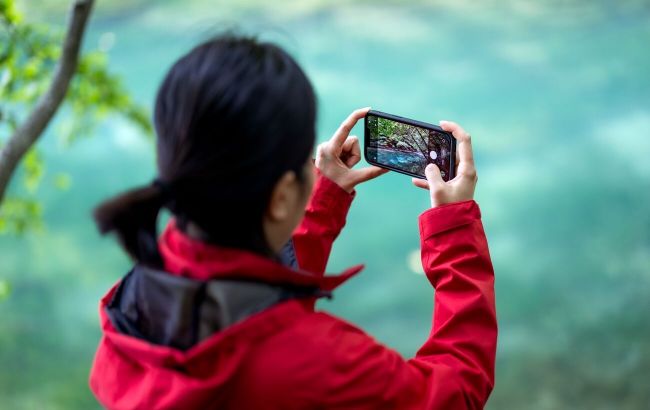 Photo: You can improve your mobile photography with basic iPhone settings (Pexels)
Despite taking excellent photos out of the box, the iPhone's default camera settings are designed to save storage space rather than maximize image quality.
Lifehacker has rounded up 10 practical tips and hidden features that will help you unlock your iPhone camera's full potential.
Optimize image quality and file formats
By default, iOS balances image quality with file size. To capture more detail, it's worth adjusting a few key settings.
Enable maximum video quality: Many iPhones are set to record in 1080p by default.
To switch to 4K, go to Settings > Camera > Record Video and choose your preferred frame rate, from 24 fps for a cinematic look to 120 fps for slow-motion footage.
From the same menu, you can also disable Enhanced Stabilization and HDR Video.
Shoot in ProRAW: On supported models starting with the iPhone 12 Pro, Apple ProRAW captures significantly more information about light and color.
This is ideal for professional editing or large-format printing, although ProRAW files are roughly 10 to 12 times larger than standard JPEGs.
Enable it by going to Settings > Camera > Formats > ProRAW & Resolution Control.
Improve file compatibility: By default, iPhones save photos as HEIC and videos as HEVC to reduce file sizes.
If you often transfer files to Windows PCs or share them with people using older devices, switch to Most Compatible under Settings > Camera > Formats to save images as JPEG and videos as H.264.
Remove unnecessary shortcuts and improve composition
The default iPhone interface offers several ways to launch the Camera app, which can sometimes lead to accidental activations in your pocket and unnecessary battery drain.
Here are a few ways to streamline it.
Prevent accidental camera launches: You can remove the Camera icon from the Home Screen and Control Center, hide the Lock Screen shortcut, disable the swipe-left gesture from the Lock Screen in Camera settings, or turn off the action assigned to the Camera Control button.
Choose a different default camera app: If you prefer third-party camera apps such as Halide or social media cameras, you can assign the Camera Control button to launch those apps instead of Apple's built-in Camera.
Turn on Grid and Level: Go to Settings > Camera, then under Composition, enable Grid and Level.
These tools help you compose better shots using the rule of thirds and keep the horizon perfectly straight.
Professional shooting techniques
To get the best results in challenging conditions, take advantage of both hardware and software features.
Use Night mode with a tripod: When holding your iPhone by hand, Night mode automatically shortens the exposure time to reduce blur.
Mounting the phone on a tripod allows Night mode to increase exposure to as much as 30 seconds, capturing far more detail in low-light scenes.
Use the wider selfie mode: On newer iPhone models, when shooting vertically with the front camera, tap the expand frame icon above the shutter button.
This widens the field of view, making it easier to fit more people or background into the shot without turning the phone horizontally.
Save your preferred camera settings: If you're tired of re-enabling Macro mode, adjusting exposure, selecting Photographic Styles, or turning on ProRAW every time you reopen the Camera app, go to Settings > Camera > Preserve Settings and enable the options you want to keep.
Record directly to an external SSD: When shooting in ProRes or Log formats on iPhone 15 Pro and newer Pro models, you can connect an external SSD via USB-C.
Your videos will be recorded directly to the external drive, freeing up internal storage and making professional workflows much easier.