How to mirror your iPhone screen to MacBook and why Android can’t

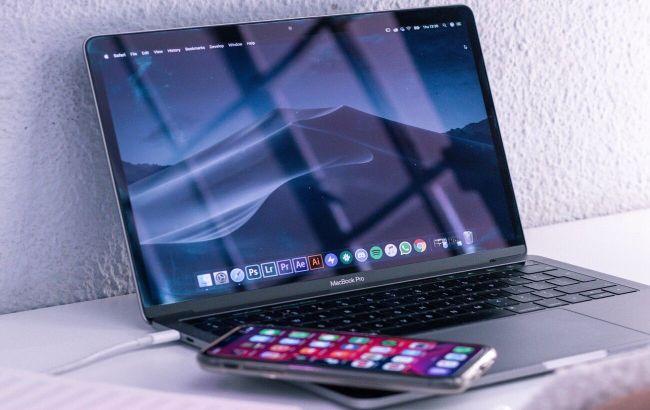 Screen mirroring from Android to Mac is possible (photo: Pexels)
iPhone and MacBook owners can easily mirror their smartphone screen to their laptop using the native iPhone Mirroring feature and the AirPlay protocol. For Android users, this option is not available.
BGR has looked into effective alternative connection methods that Android users can use.
Method 1 – free USB connection
The open-source program Scrcpy is completely free and does not require root access (full administrative access on Android – ed.).
It not only displays the screen image but also allows full control of the smartphone using a mouse.
How to connect?
Step 1. Enable Developer options on Android
- Open Settings > About Phone > Software Information.
- Tap Build Number seven times in a row and enter your device PIN.
- Go back to Settings > Developer Options.
- Toggle on USB Debugging.
Step 2. Set up and launch on MacBook
- Download the Scrcpy archive for your version of macOS (aarch64 for Apple Silicon or x86_64 for Intel processors).
- Extract the archive and run the executable file.
- If the OS blocks the launch, open System Settings > Privacy & Security.
- In the Security section, click Open Anyway next to the app name and confirm with your Mac password.
- Run the file again – after that, your smartphone screen will appear on your computer monitor.
Method 2 – wireless connection via Wi‑Fi
For those who prefer a cable‑free setup, the ApowerMirror app is a good option.
The free version has session time limits (up to 10 minutes with restart options), a resolution cap of 720p, and adds a watermark. Still, it runs reliably.
Setup steps:
- Connect your Android device and MacBook to the same Wi‑Fi network.
- Install ApowerMirror on your MacBook from the App Store and on your Android device from the Google Play Store.
- Open the app on your MacBook and select Wireless Connect.
- Launch ApowerMirror on your smartphone, tap Cast, and select your Mac from the list (the name will start with Apowersoft).
- Choose Share entire screen and then tap Share screen to start mirroring.